csp comic cmyk exporting
2025 September 18 // 2025, guide, comicsPreparing Colour Comics for Print for CSP
I recently printed my two comics: Second Shift and Keep In Box, and they're both full colour. I ran into some issues when trying to get the correct settings for a PDF export, since that is what my printer requires. If you're in the same boat, here's a quick step-by-step.
I'm assuming whoever needs this knows the difference between RGB and CMYK and what they're used for so I will not being touching on that in this guide. It's mainly for myself when I'm looking at the CSP export box and all the information has left my head lol.
If you want a more in-depth blog about CSP and printing settings, please check out this CSP article on the matter.
CSP
CSP does support PDFs, but not CMYK colour profiles for them. Only RGB. Understandable, CSP is made for printing manga in mind, which is primarily black+white. It's hard to get licensing for Adobe formats. I live in a country that uses a different CMYK profile etc etc yadda yadda... let's see what we can do.
First, let's check out our CMYK profile. The best way to prepare anything for print is to work from CMYK from the beginning... but... you're gonna forget...
CSP has a CMYK slider you can work from if you go into Windows > Color Slider and pick the CYMK option to the side, and there's some print-safe palettes you can download from the asset shop.
If you haven't been working with CMYK in mind, worry not. We can preview and do some damage control. Here's another in-depth article, but basically we're going to go into View > Color Profile > Preview Settings... and hit preview of color dialogue. A box shuld popup, and feel free to edit until you're satisfied. There shouldn't be too much of a mad difference, unless you're going very neon. I pick the European CYMK in the profile for viewing settings, and usually that's good enough for me.
Your comic/zine/print is ready for... print! Let's get to exporting...!
Exporting
If you have Pro, you can right click on the story file and Batch Export.
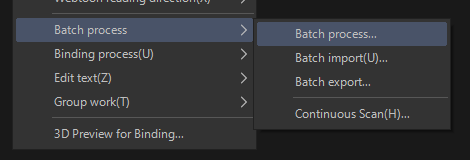
CSP will ask what file format you're exporting to, I picked JPEG, but you also pick PNG if you'd like. Give it a obvious name, location, and your page range.
This is the popup box we want. Now, some printers will ask for crop markings to be included, remember to tick the box here if so. Don't forget to click text as well... as I have forgotten to... many... many times...
Under the colour subheading, opening the drop-down menu and pick CMYK.
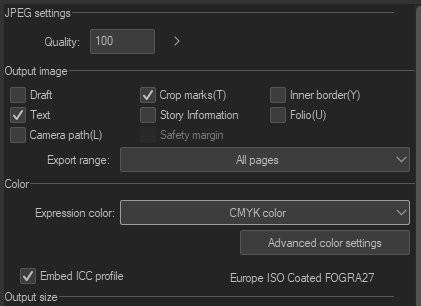
Then hit export. Part 1 done!
Gimp
Yes... Gimp... Never thought I'd be here again...
Download or open GIMP. Don't worry, we're not spending a lot of time here. GIMP is good if you're in gamedev, since it exports webps and favicons without all the extra steps.
Drag and drop your CMYK first page/cover png/jpg file into GIMP, then drag the rest. It should all be in one file, with each page being a layer.
Go to Save As..., open the File Type menu at the bottom and scroll down to the pdf file format. Or you can ignore the dropdown list and manually type .pdf to the end of your file.

A new box should pop up with some options. We only care about the first two:
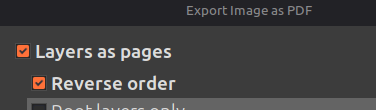
Layer as pages this needs to be ticked so your layers will be exported as one PDF file. This will export your comic from the bottom layer up (your bottommost layer is the front cover, topmost layer is the back cover).
Reverse order tick this if you ordered your comic from first page down (Your topmost layer is the cover, bottom layer is the back cover).
That's it, go ahead and click export. It might take a few minutes depending on file size etc, but GIMP will export your CMYK PDF! All ready for printing.
Other Notes
Contact your printer, ask them what the colour profile is for printing. If they can, they might send you a test copy.
Do not be afraid to ask your artist friends if they have more merch experience than you! Even mutuals, other artists online etc. Your luck may vary, but you'd be surprised. I was so lost with CMYK and where I'd find a printer, since I'd only ever done digital art but my friends came through. I know people talk about gatekeeping, but most people do enjoy being helpful. thank yous again
You'll be exporting a few times because when you look at something in a new context, you're gonna spot spelling mistakes, layout errors and whatever else can pop up. This is why it's good to show your friends. Fresh eyes will point out your mistakes.
Ohh... did you notice? Did you see? Yes >:) we have a darkmode toggle!! Slowly being added to the old blog posts... and sitewide!! o7 I'm HOPING I can somehow figure out javescript enough that I can force tags onto this blog... the web dev journey never ends!
--xoxo becky